llama.cpp, vLLM, or LM Studio: Which Local LLM Tool Does What?
Separate the desktop app, inference engine, model file, and GPU backend before choosing how to run a local language model.
You download a language model, then discover that you also need a runtime. Someone recommends llama.cpp. Someone else says vLLM is faster. A third person opens LM Studio and is chatting before you have finished reading the first installation guide.
All three can help you run models locally, but they are not identical products competing on one speed dial. The useful choice starts with the job: exploring a model yourself, integrating a local endpoint into a tool, or keeping a service responsive under concurrent requests.
This article compares their roles and the questions to ask before installation. It is not a benchmark or an installation transcript. Software support was checked against official documentation in September 2026; consult the linked requirements for the version you actually install.
A model file needs an execution stack
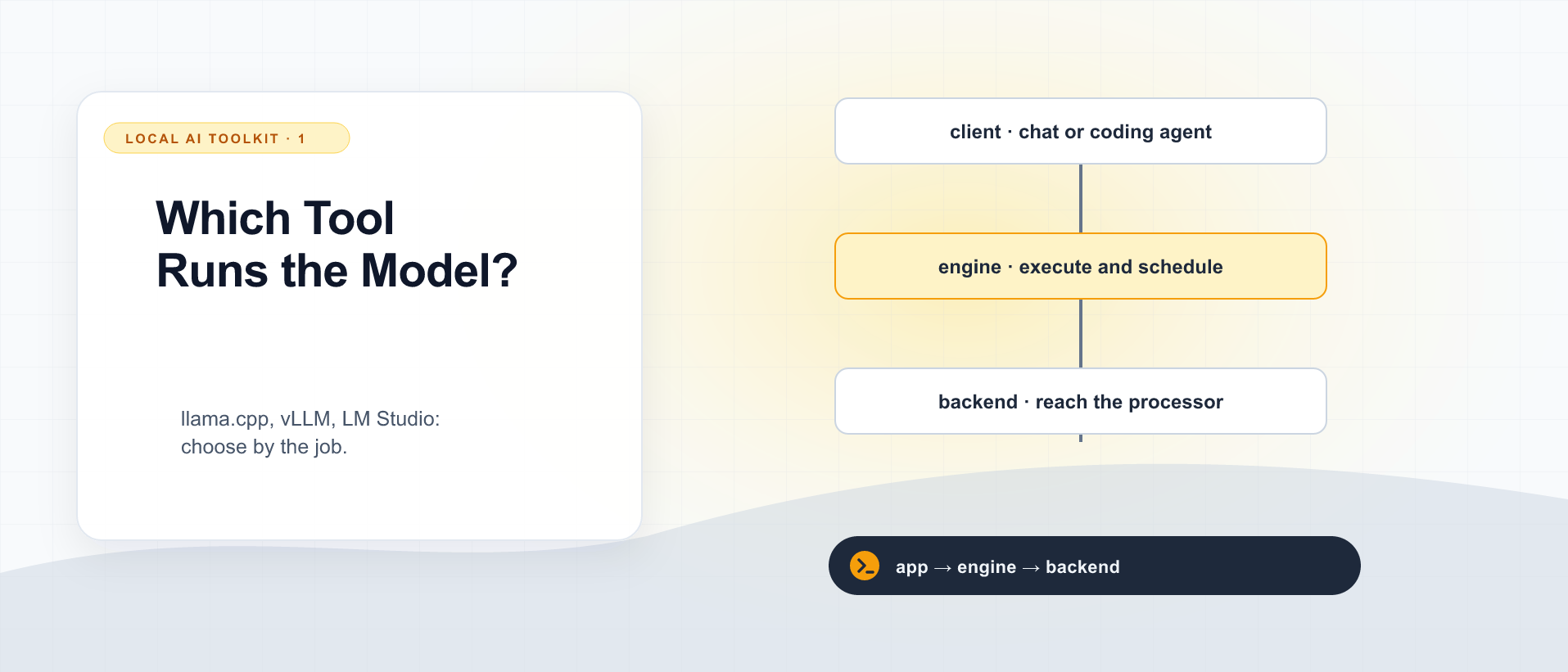
The weights are learned numbers. A chat interface collects messages. An inference server accepts requests and returns outputs. A serving engine loads the model and schedules its computation. A compute backend provides a path to execute operations on the processor.
One product can provide several of those layers. The distinction still helps when something fails.
| Layer | Example | A question it answers |
|---|---|---|
| Client | Chat window or coding assistant | What messages and tools reach the model? |
| Server and engine | llama-server, vLLM, LM Studio’s serving facilities | Who loads the model and handles requests? |
| Model artifact | A supported GGUF or a checkpoint repository | Which weights, configuration, and tokenizer are loaded? |
| Backend and driver | CUDA, ROCm/HIP, Vulkan, Metal, CPU code | How does computation reach the hardware? |
If the engine cannot interpret the model architecture, extra GPU memory will not fix it. If the requested backend is unavailable, a successful CPU run does not demonstrate GPU acceleration. If a chat template is wrong, a running endpoint can still produce poor responses.
llama.cpp: direct control over local inference
llama.cpp is a C/C++ inference project built on ggml. Despite its name, it supports many model architectures beyond Meta’s Llama family. GGUF is its model-file ecosystem, and it offers CPU execution plus several accelerator backends. Support is model- and build-specific. Official llama.cpp project.
Its server tool, llama-server, exposes HTTP endpoints, including an OpenAI-compatible API, and supports features such as parallel request handling. You do not need to write your own web server around a command-line chat process just to obtain an endpoint. Read the first-party server documentation before building a wrapper. llama-server documentation.
I would evaluate it first when the desired deployment is a local GGUF model, explicit control over offloading and context, or a lightweight service whose configuration I want to inspect closely. That is a workflow recommendation, not a claim that it wins every performance comparison.
The responsibility you take on is understanding the build and its flags. CPU-only and accelerator-enabled builds are different configurations. Confirm the detected device, selected backend, and placement from runtime output rather than assuming that a GPU present in the machine is being used.
LM Studio: an application around the runtime
LM Studio provides model discovery and downloading, a chat interface, configuration management, and local serving. Its documentation describes llama.cpp-based execution and, on Apple Silicon, an MLX path. It also provides the lms CLI and a headless daemon called llmster; it is no longer accurate to describe it as usable only through a desktop window. LM Studio documentation.
I would start here when the immediate goal is to compare model behavior interactively, adjust settings without assembling a serving stack, and then connect another application to a local endpoint. The graphical workflow is useful even if you later move the deployment elsewhere.
A polished model picker cannot remove compatibility constraints. Check which runtime was selected, whether the artifact matches it, and where computation runs. Two users saying “I tested this in LM Studio” may have used different model conversions, backends, contexts, and runtime versions.
vLLM: serving with scheduling in mind
vLLM is an inference and serving engine with continuous batching, attention-cache management, prefix caching, and distributed execution options. These features make it a strong candidate when multiple requests must share accelerator capacity. Its documentation also includes API serving and structured-output facilities. Official vLLM documentation.
The interesting question is what happens when several people ask questions at once. Does the server use the available hardware effectively? How long does a new request wait? What happens to ongoing generation when another user submits a long prompt?
That is why I would evaluate vLLM early for a supported accelerator server serving a team. It is not evidence that vLLM will beat another engine on one short request on every workstation. Model kernels, precision, request mix, and platform support remain part of the result.
Check the exact GPU and operating-system route before installing. NVIDIA CUDA and AMD ROCm installations have distinct requirements; an AMD card’s ability to run a different engine through Vulkan does not establish compatibility with a vLLM ROCm build. vLLM GPU installation requirements.
Do not assume a GGUF downloaded for another app is the ideal vLLM input. At the time checked, vLLM’s GGUF documentation calls that path experimental and under-optimized and describes a separate plugin. Start from the supported model and quantization combinations for your release. vLLM GGUF support.
Choose by the work you want to make easy
These are starting points for evaluation, not exclusive capabilities:
| Situation | Start by evaluating | Why |
|---|---|---|
| I want to download a model and compare answers in a chat UI | LM Studio | Discovery, configuration, chat, and serving are in one application |
| I want a controlled GGUF endpoint on a workstation | llama.cpp / llama-server | Direct access to the engine and its placement settings |
| I want a shared endpoint under concurrent load | vLLM | Request scheduling and serving efficiency are central concerns |
| I already have a working local stack | That stack first | A real missing capability is a better migration reason than a tool’s reputation |
Other tools, including Ollama and MLX-based applications, belong in the wider ecosystem. The point of this comparison is to understand these three options, not to declare them the complete list.
“OpenAI-compatible” is an interface claim
An OpenAI-compatible API can make it easier to connect an existing client to a different server. It does not promise identical endpoint coverage, tool calling, structured outputs, reasoning fields, or output quality.
Verify the operations your client actually uses. A successful chat request proves less than a coding assistant completing a tool call, accepting its result, and continuing correctly. The selected model and chat template are part of that behavior too. The llama-server API reference documents supported requests; compare those with the client rather than relying on the compatibility label alone.
Local execution also describes where inference runs, not everything the surrounding application does. Model downloads, external tools, remote endpoints, and update checks can still use the network. LM Studio documents an offline mode once the necessary files are present; treat offline operation as a configuration to verify. LM Studio offline operation.
Compare one variable at a time
Use the same model revision and, where the engines support it, the same quantization, prompt, context limit, and output settings. Record any unavoidable difference. Comparing one model in a desktop app with a different model in a server says little about the engines.
Measure a cold load separately from a warm request. Then test a short prompt, a long prompt, and concurrent requests representative of your intended use. Record time to first token, generation speed, peak memory, and whether the answers meet a small acceptance test. Aggregate throughput and one person’s latency can tell different stories.
Once you have chosen a candidate, the next question is how it reaches the GPU. Continue with CUDA, ROCm, Vulkan, and Metal. For the files you load into it, read GGUF, quantization, dense models, and MoE. The architecture guide explains a separate layer: what kind of network those weights describe.

Local AI Toolkit: Runtimes, GPU Backends, and Model Files
3 parts in this series.
Three practical primers on choosing llama.cpp, vLLM, or LM Studio; understanding CUDA, ROCm, Vulkan, and Metal; and reading GGUF, quantization, dense-model, and MoE labels. A companion to the standalone model-architecture guide and Running AI Yourself.
- 01llama.cpp, vLLM, or LM Studio: Which Local LLM Tool Does What?← you are here
- 02CUDA, ROCm, Vulkan, and Metal: Why the GPU Software Stack Matters for Local AIup next
- 03GGUF, Quantization, Dense, and MoE: How to Read a Local Model Download
What did you take away?
Thoughts, pushback, or a story of your own? Drop a reply below — I read every one.
Comments are powered by Disqus. By posting you agree to theirterms.