Inside My Homelab: The Hardware, Network, and What Runs Where
How Talokan's 96 GB, Shuri's 64 GB, two Intel hosts, a Synology NAS and UniFi networking run my applications, builds, local AI and media at home.
My homelab runs the applications I deploy, the builds I need for work, local AI, games and the media I watch at home. Two Intel PCs, two Minisforum systems and a Synology NAS share that work, connected through UniFi networking.
The interesting part is how much these machines rely on each other. An application can run on one box while its virtual disk lives on another. The machine answering DNS requests is itself a virtual machine. Knowing which machine supplies each dependency makes a simple reboot worth thinking through.
This is the first article in a series about building and operating my home infrastructure. I’ll start with the hardware and where the workloads run. The next article focuses on the dedicated 10G server backbone and 2.5G compute links.
How everything connects at home
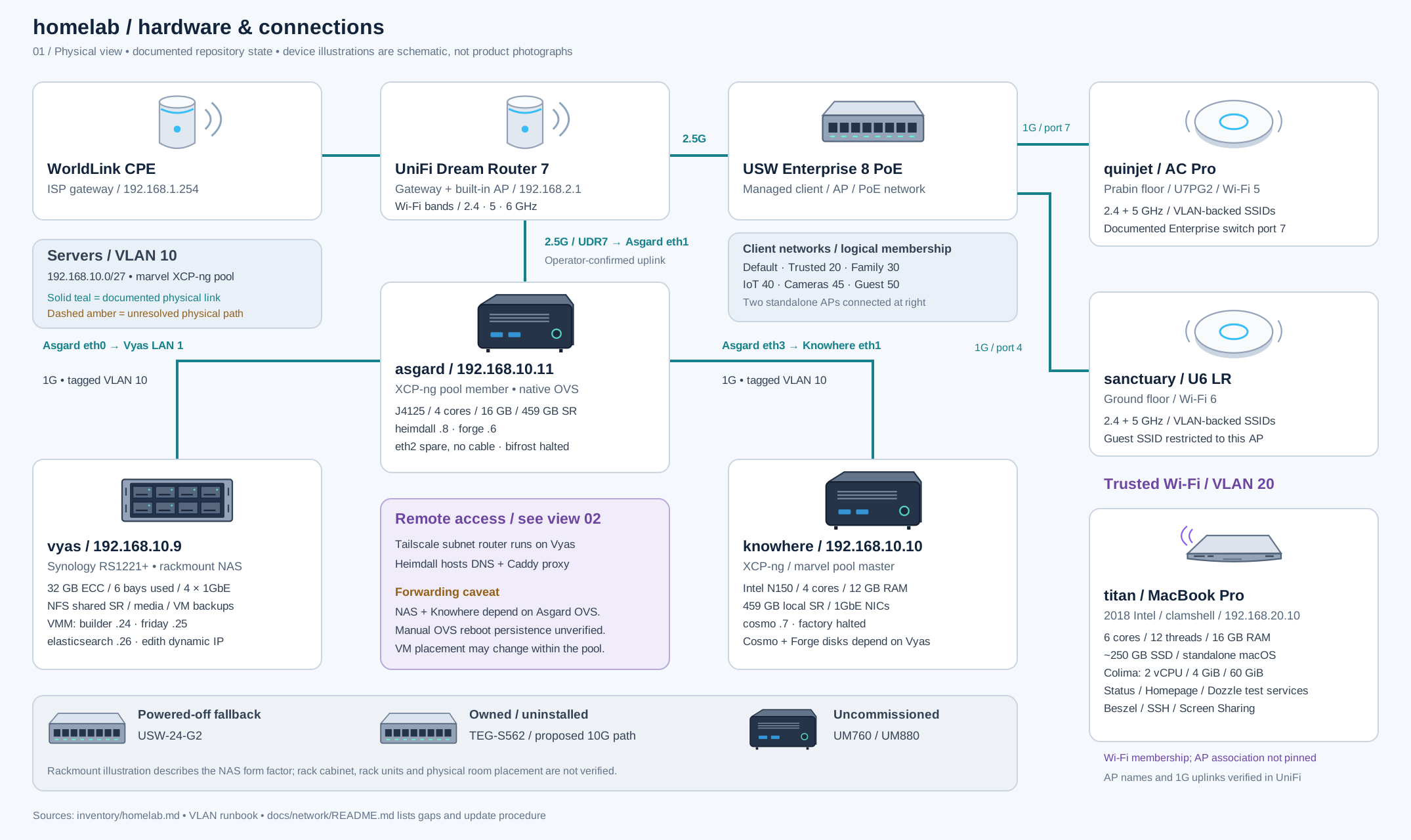
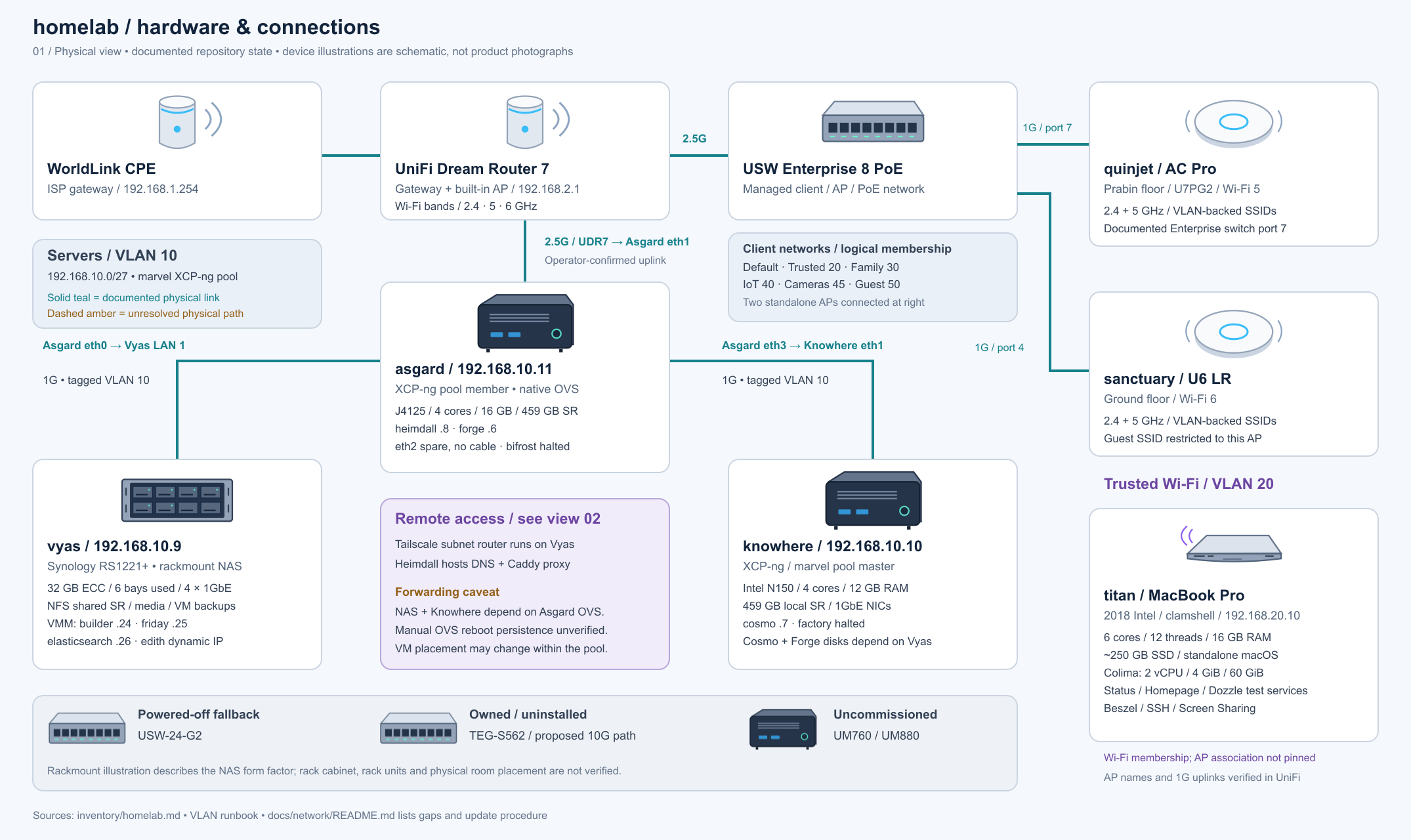
The diagrams are clickable if you want to zoom in; press Escape to return. Cable colors show link speed: amber for 1 Gbps, teal for 2.5 Gbps and blue for 10 Gbps. The main distinction I want to make visible is that the Intel hosts share one XCP-ng pool, Talokan is in its own AMD pool, and Titan connects over Trusted Wi-Fi rather than joining either pool.
Internet access comes through a WorldLink CPE into a UniFi Dream Router 7. The UDR7 handles routing between the home networks and also provides Wi-Fi on 2.4, 5 and 6 GHz. Its SFP+ connection to the USW Enterprise 8 PoE runs at 10 Gbps.
The Enterprise switch serves the household side through two access points: sanctuary on the ground floor and quinjet on the Prabin floor. Both provide 2.4 and 5 GHz coverage over gigabit uplinks. I keep them on the managed switch with the household networks, separate from the server connections.
The small machines doing the work
The Intel XCP-ng pool is called marvel-cosmos. Talokan forms the separate AMD vibranium pool, while Shuri runs Ubuntu directly:
| Host | Hardware | Memory | Local storage | Role |
|---|---|---|---|---|
knowhere | Intel N150, four cores | 12 GB | Approximately 459 GB local SR | XCP-ng pool master |
asgard | Intel Celeron J4125, four cores | 16 GB | Approximately 459 GB local SR | XCP-ng pool member |
talokan | Minisforum UM760 Slim, Ryzen 5 7640HS | 96 GB (2 × 48 GB) | 2 TB NVMe | Single-host vibranium XCP-ng pool |
shuri | Minisforum UM880 Plus, Ryzen 7 8845HS / Radeon 780M | 64 GB (2 × 32 GB) | 2 TB Crucial T700 | Ubuntu, gaming, local AI and Incus |
vyas | Synology RS1221+ | 32 GB ECC | 9.49 TiB usable / RAID5 | NAS, shared storage, selected services and VMM guests |
titan | 2018 Intel MacBook Pro, six cores / twelve threads | 16 GB | 250.7 GB SSD | Standalone macOS utility host on Trusted Wi-Fi |
An SR is XCP-ng’s storage repository: the place it keeps virtual disks. The two hypervisors retain local storage, and both can access the shared NFS repository on Vyas.
Knowhere runs Quill and Factory. Asgard runs Heimdall, which looks after DNS, the reverse proxy and monitoring. Cosmo runs on Vyas VMM and hosts applications and LiteLLM. Talokan carries the primary build VM, runners and several infrastructure guests; Shuri runs GPU workloads directly alongside its Incus guests.
I put 96 GB in Talokan because it carries my XCP-ng guests. Shuri’s 64 GB has to serve Ubuntu, the Radeon 780M, games, inference and Incus together. Across both machines that’s 160 GB installed, but it isn’t one shared pool: each host has its own work, reservations and VM limits.
The names make daily operations easier to follow. “Heimdall’s DNS is unavailable” tells me considerably more than “one of the Debian VMs is having a problem.” But a name is only useful when I also know its host, address, storage and dependencies.
Vyas keeps the data—and runs a few services too
Vyas is a Synology RS1221+, a rackmount NAS with eight bays and four built-in 1GbE ports. Its four-disk RAID5 array gives me 9.49 TiB of usable filesystem capacity (10.43 TB) on /volume1. That’s the volume’s total capacity, not its free space; about 1 TiB in the storage pool remains unallocated.
The NAS provides shared files, media storage and the vyas-xcpng NFS repository. It also hosts VMM guests, which makes it part of their runtime path, not merely somewhere they write backups at night.
Vyas does more than store files. It runs Jellyfin and Xen Orchestra, and hosts the VMM guests Cosmo, Friday and Edith. Cosmo serves my applications and LiteLLM; Friday and Edith take the agent workloads. I keep the primary amd64 builder and Mantis for Elasticsearch on Talokan.
Backups stored on Vyas share the NAS failure domain with its primary data. They provide a local recovery tier, but protection against losing the entire NAS requires a separate copy.
Titan: a MacBook Pro with a smaller job
There is also a 2018 Intel MacBook Pro running in clamshell mode, named titan. It has six cores, twelve threads, 16 GB of RAM and an approximately 250 GB SSD. It sits on Trusted Wi-Fi, VLAN 20, at 192.168.20.10, outside the XCP-ng pool. The diagram shows its wireless network membership without tying it to a particular access point.
I use Titan for small macOS utilities, not as another always-on server. Its Colima environment has modest CPU, memory and disk limits; the status, Homepage and Dozzle test services listen only on the Mac itself. Beszel gives me a view of the host and containers without turning those local checks into public dashboards.
SSH and Screen Sharing provide remote administration. AirPlay is available while a graphical session is logged in; it is not something I can depend on at the login window after a reboot.
The Mac has a useful role, but it is deliberately a light one. Sustained load causes thermal throttling, and the battery reports that service is recommended. I use it for macOS utilities and small experiments rather than making it the only machine responsible for an essential service.
Keeping the NAS network independent of compute
The server network is VLAN 10, using 192.168.10.0/26. Vyas connects to port 2 of the USW-24-G2, Knowhere to port 4 and Asgard to port 23. Port 24 uplinks to Enterprise port 5. These are gigabit paths with VLAN 10 tagged. The USW-24-G2 is online and pending retirement when its replacement connections are accepted.
I wanted the NAS path to keep working when Asgard is down, so Vyas no longer depends on Asgard’s Open vSwitch forwarding. Shuri and Talokan connect directly to the UDR7 at 2.5 Gbps; the switch and host roles are easier to reason about when storage traffic doesn’t pass through a compute machine.
A VLAN lets me keep device groups separate while sharing the physical network. Servers use VLAN 10, while Trusted, Family, IoT and Cameras use VLANs 20, 30, 40 and 45. The UDR7 applies the rules between them; Wi-Fi devices join the appropriate network through their SSID.
Before I take a host down, I check what depends on it. Extra memory gives me more choices about where workloads live, but it does not remove their reliance on DNS, switches or shared storage.
Reaching my services when I’m away from home
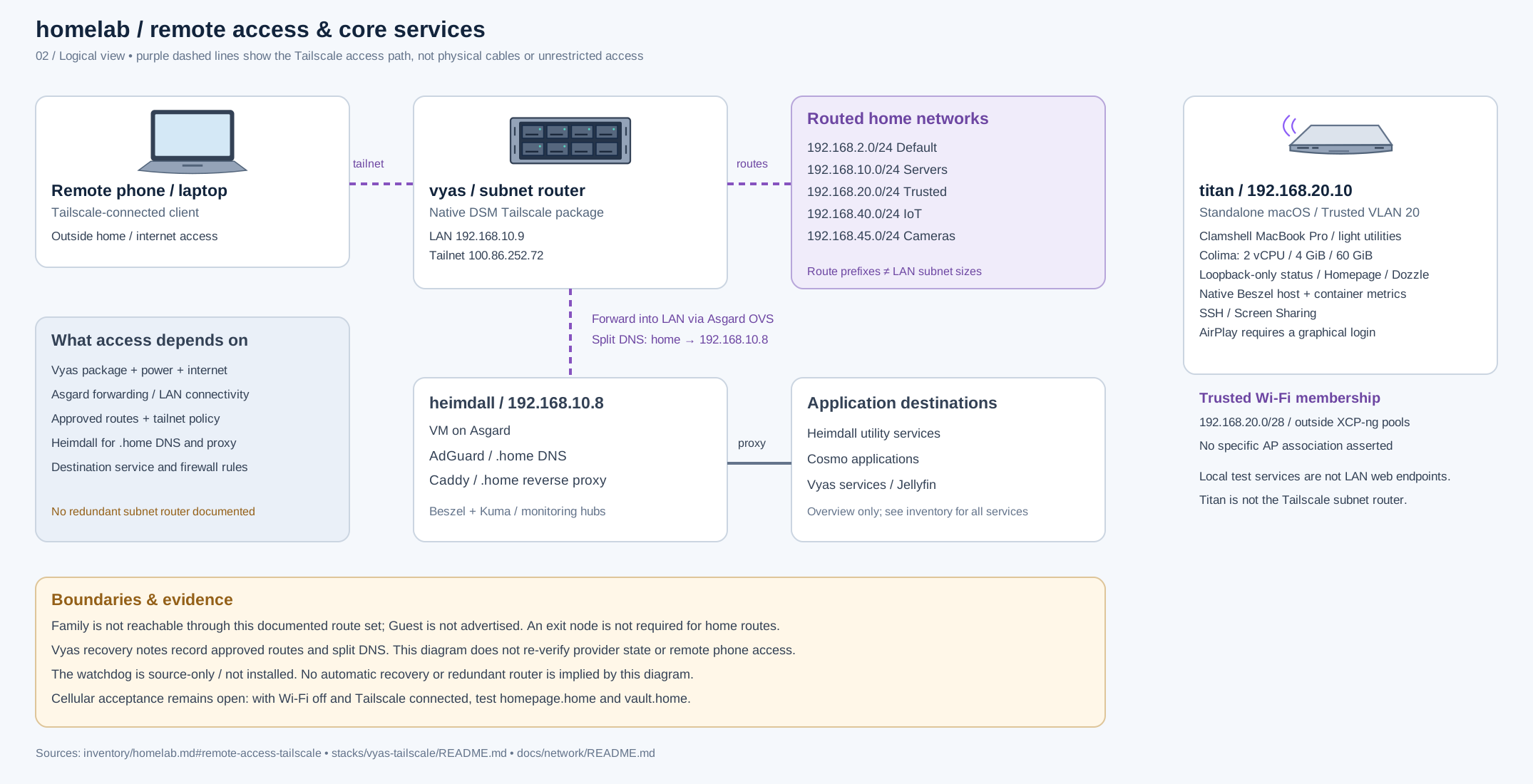
When I’m away, I connect through Tailscale, which runs directly on Vyas as a DSM package. Vyas acts as a subnet router: it gives my authenticated remote devices a route into the home networks they are allowed to reach. Once connected, Heimdall resolves my .home names, and Caddy sends web requests to the right service.
If a service will not open, those are the pieces I need to check. I might be connected to Tailscale but unable to resolve a .home name, or DNS might work while the application itself is down. Getting onto the home network is only the first step.
There are still several ways for that access to break: Vyas, the internet connection, the switch uplink, Heimdall or the service I am trying to use. Monitoring helps me spot a failure, but this is not yet a setup that can keep everything available when a machine goes down.
Dividing the work
I keep VM and service limits explicit. That lets a build use its budget without treating all of Talokan as available, and keeps Shuri’s inference workload from crowding out the OS, games or Incus guests.
In the next part, I’ll walk through the 10G backbone, the 2.5G host connections and how the two Minisforum hosts fit that network. Capacity, connectivity and recovery each need their own checks.

Building My Homelab
2 parts in this series.
Inside my home infrastructure: the hardware, network topology, storage and virtual machines, followed by the move to 10G networking and two Minisforum XCP-ng hosts.
- 01Inside My Homelab: The Hardware, Network, and What Runs Where← you are here
- 02Building My AI Shed: A 10G Server Backbone and 160 GB Across Two Minisforum Hostsup next
What did you take away?
Thoughts, pushback, or a story of your own? Drop a reply below — I read every one.
Comments are powered by Disqus. By posting you agree to theirterms.