Few Keyboard Shortcuts for Terminal
few terminal shortcuts
-
Up/Down Arrows: The up and down arrows on your keyboard move through your last used commands. So, if you wanted to run the second to last command you ran, just hit the up arrow twice and hit Enter. You can also edit the command before you run it.
-
Ctrl+Left and Ctrl+Right: Hitting Ctrl and the left or right arrow keys jumps between arguments in your command. So, if you had a typo in the middle of the command, you could jump to it quickly with Ctrl and a few taps of the left arrow key.
-
Home and End: The Home and End buttons on your keyboard move your cursor to the beginning and the end of the currently typed command, respectively. This is useful if you’ve, say, typed in a command but realize that there’s a typo in the first word. Instead of holding down the left arrow key, just hit home and correct it.
-
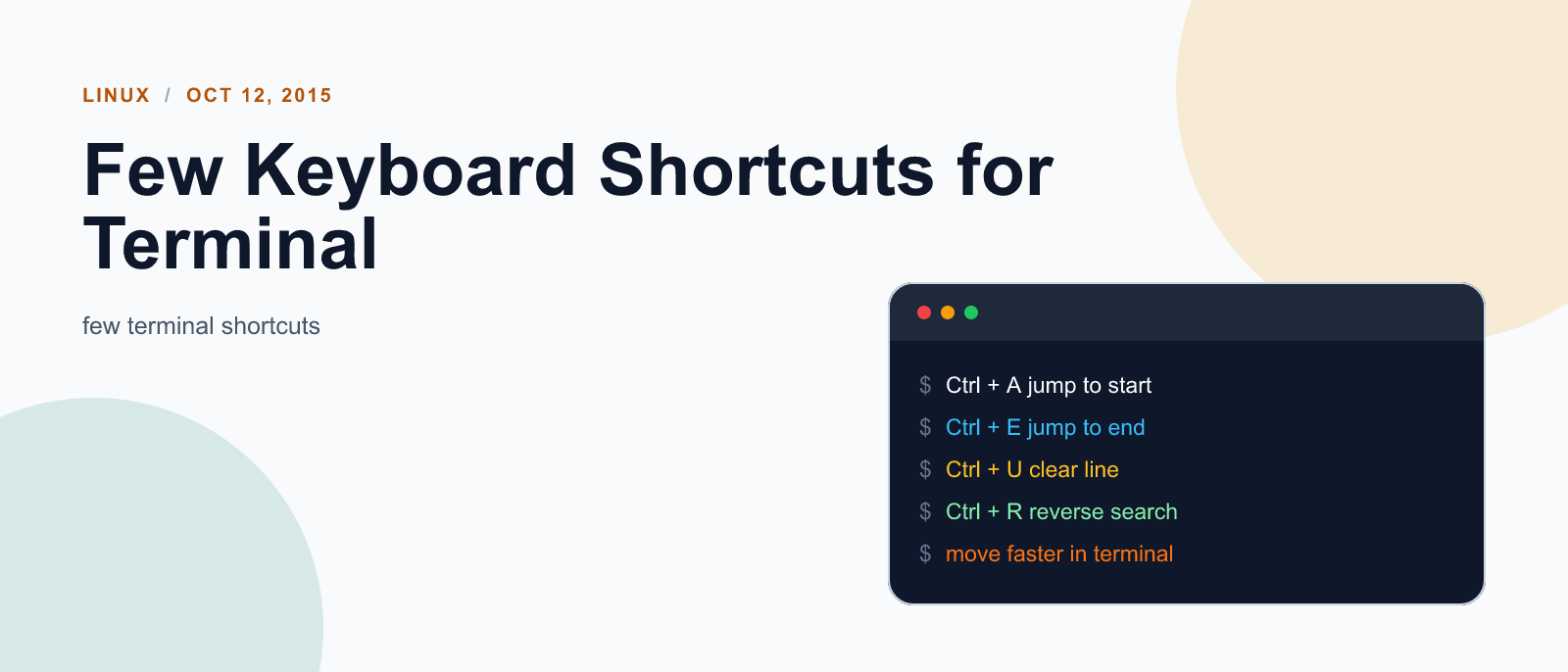
Ctrl+U: This clears the entire line so you can type in a completely new command.
-
Ctrl+K: This deletes the line from the position of the cursor to the end of the line.
-
Ctrl+W: This deletes the word before the cursor only.
-
Ctrl+R: This lets you search your command history for something specific. For example, if you wanted to search for the recent commands that included
nano, you would hit Ctrl+R and typenano. It would show your most recent command, and you could use the up and down arrows to cycle through your history of commands using nano in them. -
Tab: One of everyone’s favorite shortcuts employs Tab to autocomplete a line of text. So, say you wanted to type
cd ~/Dropbox/, you could just typecd ~/Dr, hit Tab to autocomplete opbox, and continue on with your day.

Keep reading

Fix mise GitHub Rate Limit with a Token
mise makes unauthenticated GitHub API calls by default. When you hit the rate limit installing tools, a personal access token (no scopes required) fixes it permanently.

How to solve Deployment Failure-`assets:precompile`
I was trying to deploy rails 6 app on ec2 server using capistrano when precompile failure lead to whole deploymentt failure. I had to uninstall cmdtest and install yarn

How to Sort an Array of Objects in JavaScript
How to Sort an Array of Objects in JavaScript
What did you take away?
Thoughts, pushback, or a story of your own? Drop a reply below — I read every one.
Comments are powered by Disqus. By posting you agree to theirterms.